WebM
Direct upload
No manual audio extraction needed
Upload a WebM from a browser capture, screen recording, or video workflow and turn its spoken audio into editable text. Review uncertain phrases against the source, then export text or timed captions.
Create an account when you start · 10 signup credits · No credit card required
START WITH THE VIDEO
Choose a playable WebM with recognizable spoken audio below. Set the spoken language, speaker recognition, context, key terms, and transcript style before processing.
WebM
No manual audio extraction needed
99
Choose one or use auto detect
5 GB
Upload one playable video at a time
4
TXT, Markdown, SRT, and VTT
FOUR-STEP WORKFLOW
Use one workspace from direct WebM upload to source-video review and export.
Choose one playable browser capture, screen recording, or other WebM up to 5 GB. You do not need to extract the audio first.
Select a spoken language or auto detect, then add speaker recognition, context, or key terms if useful.
Sign in, confirm the estimated credits, and let processing continue in the background.
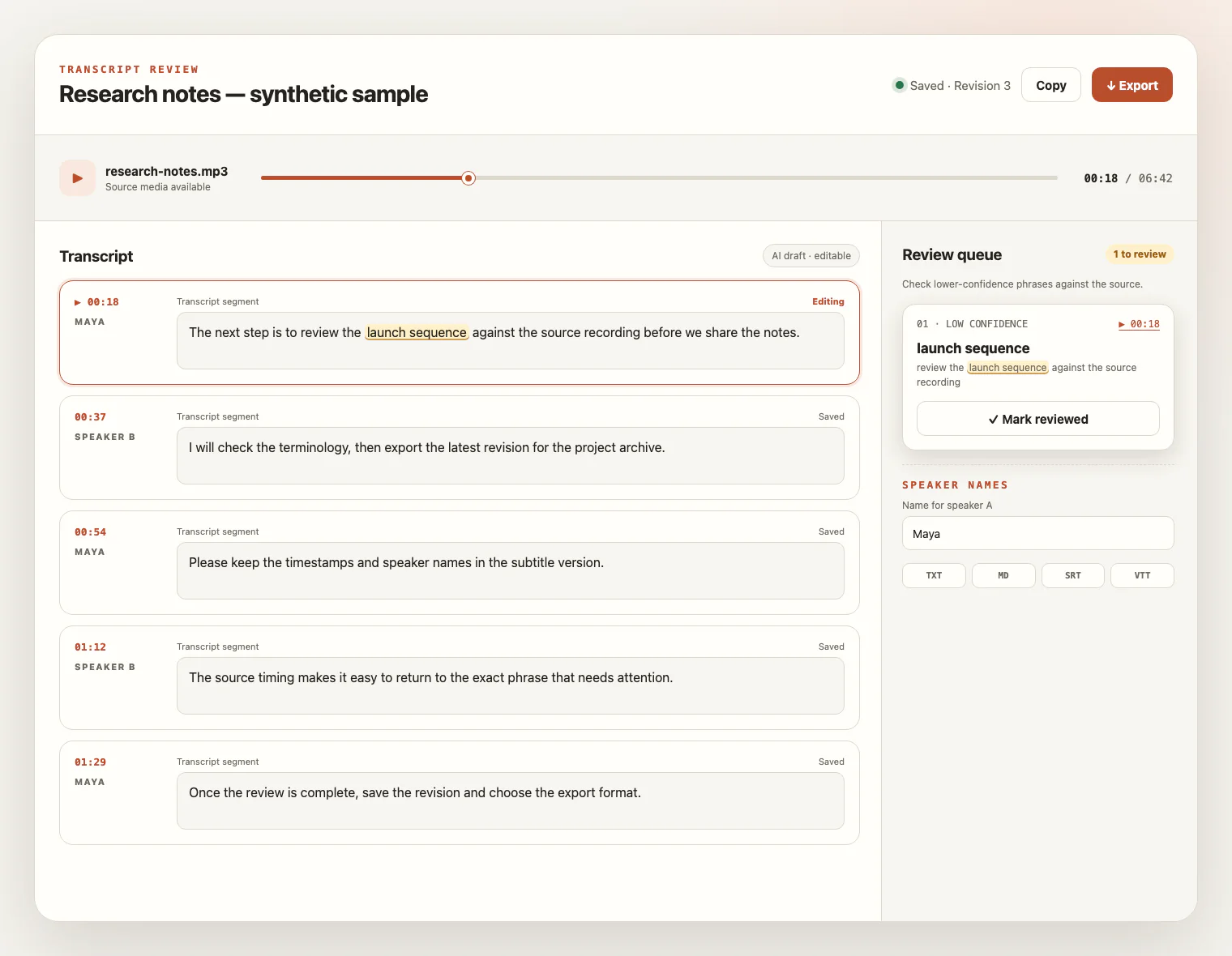
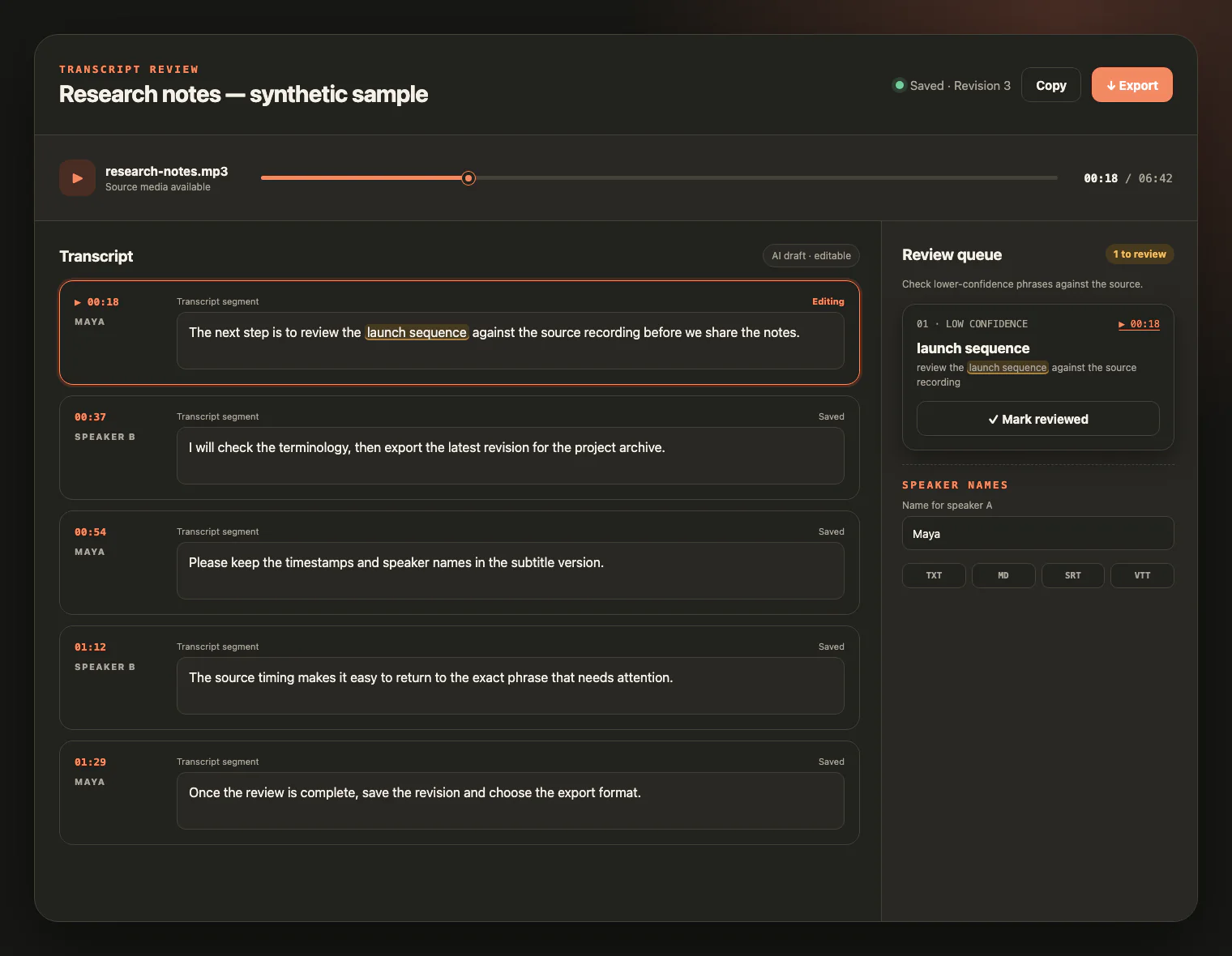
Check the draft against the source media, edit the text, and export TXT, Markdown, SRT, or VTT.
WATCH, LISTEN, CHECK
Keep the WebM source beside the draft. Replay uncertain wording, follow timestamps, rename speakers, and save corrections before export.
CONTAINER, AUDIO TRACK, SPEECH
WebM identifies a media container used by many browser and screen recorders, not a guaranteed codec or transcript quality. The workflow listens to the audio track rather than reading video frames, so clear speech matters more than resolution or frame rate.
Play the browser or screen recording first and confirm the voices are audible. Silent scenes, slides, and on-screen text do not become transcript content.
WebM may combine VP8, VP9, or AV1 video with Opus or Vorbis audio. A matching extension and media type still need playable, readable media.
Voice level, microphone distance, background music, noise, and overlapping speakers matter more than video resolution.
Keep the file within 5 GB. Long or high-resolution screen recordings can become large without adding useful evidence for speech transcription.
FROM VIDEO TO WORKING TEXT
A WebM transcript makes spoken browser and screen recordings easier to search, edit, quote, document, and caption without claiming to analyze the picture.
Turn narrated tab captures, walkthroughs, and product demos into searchable text while reviewing details against the source.
Create an editable transcript with speaker labels you can verify and rename.
Build notes or timed captions from spoken lessons, recorded training, and web-delivered video.
Reuse the words that were spoken while keeping visual-only slide text outside the transcript unless you add it yourself.
WebM TRANSCRIPTION FAQ
Practical answers about browser and screen recordings, WebM containers, audio tracks, codec compatibility, credits, exports, and source-video access.
Yes. A playable .webm file with a recognized video/webm or audio/webm identity can be uploaded directly, so you do not need to extract its audio first.
Yes, when the WebM contains clear spoken audio and passes the shared type, size, and duration checks. Recorder output varies, so the .webm extension alone does not guarantee compatibility.
No. WebM is a media container. It may carry combinations such as VP8, VP9, or AV1 video with Opus or Vorbis audio, but the extension alone does not guarantee a supported codec or playable file.
No. The workflow transcribes spoken audio. Slides, screen text, charts, silent scenes, embedded captions, and burned-in captions are not read with OCR or visual analysis.
The per-file upload limit is 5 GB. Upload one playable file at a time, and remember that higher resolution can increase file size without improving speech recognition.
The service supports 99 languages. New accounts receive 10 signup credits with no credit card required, and one credit covers one minute of transcription.
Yes. During the source-media retention window, play the WebM beside the transcript, inspect uncertain phrases, rename speakers, and save your edits.
Export TXT or Markdown for editable text, or SRT and VTT for transcript timing. These exports do not extract embedded captions, generate a summary, or translate the video.
The source media remains available for review for up to seven days from task creation and can be deleted sooner. Saved text remains available for review and export.
YOUR VIDEO, READY TO READ
Upload a WebM, review the transcript beside the source video, and export editable text or timed captions.